Tuesday, March 10, 2009

Pc Doc Pro: Online Organizers Tools

Free Online Organizer Tools

It’s apparent that Microsoft is apprehensive with the likes of Google and other pioneers in Web 2.0 applications—applications that are embedded into web pages, content rich and visually pleasing, delivered and rendered to your desktop by your web browser. Microsoft relies heavily on the omnipresent dominance of its Windows operating system and the applications that run locally on it. Web 2.0 apps threaten the integrity of Microsoft’s software stranglehold, so it’s only natural that we see them squirming. Bad news for Microsoft, great news for users worldwide.

As Web 2.0 apps become more popular and are increasingly used as replacements to locally executed applications, desktop applications that were once known only on the desktop—word processing, spreadsheets manipulation, sophisticated email clients, et al.—can now be found inside your web browser, making it possible to sever any ties to a particular operating system, as well as allowing you to access your information through your smart phone or any handheld device that can reach the web. Are we witnessing the phasing out process of traditional desktop software? Possibly.

Stay Organized Online

Why hassle with rolodexes and traditional pen and paper to categorize your month or to jot down a reminder to buy milk at the store? Get organized by using one of the many online tools that can be access from your browser whether you’re running Windows, Mac, Linux, Unix, or using a smart phone etc. Let’s take a look at some of the free online offerings to help structure and manage your life.

Don’t Forget the Milk

The flow of daily life has a way of inundating us with tasks to do: get milk at the store after work; get the oil changed on the 15th; dentist appointment next week, so brush extra well this week. Your task inbox keeps piling up, and now your brain is frazzled and tired. The trick to maintaining your sanity is to do one thing at a time, not letting the size of your task queue overwhelm you; only think of the completion of the current task at hand, and once you’ve completed it, check it off the list and move on to the next one. And what better way to organize this list than with an online task manager such as http://www.rememberthemilk.com/?

Remember The Milk is a wonderful service that can give you peace of mind when making your to-do lists. RTM also makes it easy for your boss, significant other or whoever, to send tasks to your RTM inbox, effectively incorporating the inbound task into your own list. The basic service is free, but for an annual fee of $25 USD will get you a professional account, which allows for more useful features.

Store It In Your Backpack

It’s time to retire your tangible paper notebook, as backpackit.com, an online note manager application, is excellent at keeping all your notes organized and accessible from any device that has web access and a browser. OK, so the idea of storing your notes online is neat, but what if you’ve a sudden flash of inspiration and need to jot down a few notes before it dissipates from your brain? The cool thing about BackpackIt is that it assigns an email address to each of your note pages, so all you need do is email the note to said address from your smart phone. Very convenient and easy.

Staying organized in this day and age is a snap with the ubiquitous web all around us, and with so many ways to access the web—desktop PC, internet cafĂ©, smart phone etc.—you too can manage your daily tasks the digital way!

Pc Doc Pro is one of the best tool which provides us new tactics and way to organize tools like free organizers tools, online organizers tools and best registry cleaning software.

Monday, March 9, 2009

Share your Music with Pc Doc Pro

Share Music Without a Lawsuit

I certainly remember the heyday of Napster; p2p—or peer to peer—became a household phrase, and the lossy compression of the mp3 format made downloading a single song over dial up bearable. I also recall many of my friends frantically downloading every song they could off the Napster network when word got out that Napster was shutting down its servers due to legal pressures. Let’s face it: people love to get something for nothing. We all love free stuff! So it’s very tempting to imagine a world where music flows from the tap; but this isn’t reality, and the consequences of illegal music sharing are complex and convoluted. Let’s look at some ways to share your music without fear of getting sued.

Check out Lala.com

This music sharing site allows you to legally trade your CDs with other members on the site. When you sign up for an account on Lala.com, you’ll be asked to fill out your profile along with the CDs you’re willing to let go of, as well as the CDs you desire to have. If another member discovers that they want something from your music playlist, an email will be sent to you containing shipping information, and you’ll also get a CD on your wish list in return, in true tit-for-tat form. Shipping and handling will set you back $1.75 USD.

Lala.com is a lot more than a CD swapping site; it’s also a great music service that you should take advantage of. This music service also allows you to take one of your CDs, rip the tracks into mp3 files, and upload them to your LaLa account, which ultimately lets you listen to your music collection from any computer with an internet connection. Syncing your iPod from your account is also easy to do.

Browsing other members’ playlists is a great way to discover new music that you may want to acquire. Lala.com lets you sample tracks off other members’ playlists, and you can get excellent music advice from the friendly LaLa forums. There’s also an onsite store, so buying that new CD online becomes an easy, convenient experience.

iLike.com: Sharing Your Tastes

Installing the iLike program will embed a sidebar that presents itself in iTunes or WMP. The purpose of this sidebar is to serve up recommendations based on what’s currently playing in your music player. For example, if you’re currently playing The Deftones, the sidebar will display other musical recommendations based on the genre that The Deftones represent. Along with these recommendations, you’ll also get to listen to 30 second samples to better determine whether you’d like to actually purchase the album in its entirety. The Friends Tab will let you peruse what your buddies are currently listening to, and the Artists Tab provides information on your favorite bands and singers.

Even if you don’t use iTunes or Windows Media Player, you can still make use of the iLike service if you have a MySpace or FaceBook account. The MySpace and FaceBook social networking sites offer widgets that be embedded into your profiles, spicing it up and giving your page access to your iLike account.

Songza: Find That Song!

Let’s say that you just absolutely must listen to a particular song right now, what do you do? Surf on over to Songza, search for your song, and if it finds it, you’ll be able to enjoy it by streaming it directly to your computer; nothing could be easier!

You can stream the song, give it favorable or scathing rating, view the YouTube video, place it into your social networking profile or add it to your blog to audibly liven it up, and others. Get your quick song fix by visiting Songza!

Pc Doc Pro is one of the best pc cleaner which also provides you the lots of tactics to share your music world wide in short span of time.

Sunday, March 8, 2009

Pc Doc Pro: Streamline Your File and Folder Access


Favorites: Streamline Your File and Folder Access

Windows offers its users all sorts of little tricks and little known shortcuts to make your computer more convenient and efficient to use; you should take advantage of these shortcuts to make your own computing experience more enjoyable.

Make Use of Recent Documents

When you access an Open File dialog box, you’ll see a history list, a view of all recently accessed files in the Places Bar, also called Recent Places in Windows Vista. This convenient feature also lists recently accessed folders as well as your files. If you’re running Windows XP or 2000, you can opt to alter the file filter settings in the view by tweaking out the “Files of type” drop down list.

Clicking on the “File Name” drop down box will also display a shorter, more terse history file list. Selecting the arrow on the right will pop up the list display. Filtering this list can be accomplished by choosing the type from the “Files of type” list box in XP or 2000, or, if you’re running Vista, by clicking on the menu at the right side of the file name box.

If you want to open a recently opened folder in lieu of a file—in XP or 2000—open the “File name” drop down box to choose a file residing in the folder you want; next, press the right arrow key to deselect the name, and backspace just enough to leave the path to the folder intact; now press Enter. The list that gets displayed should now show the folder in question.

Vista’s Toolbox

If you’re running Vista, get to know the Windows key, as it can really save you a lot of time with trivial computing tasks. For example, hold down the Windows Key and type several letters until Windows can find a match to the application you’re typing out. When Vista finds a match, hit Enter to quickly fire up said application; very fast and convenient!

But what if you’re still operating under Windows XP or 2000? No problem! You can obtain Vista’s same functionality by installing a program called Launchy, a free file launching utility. With Launchy, one can simply press Alt+Space to materialize a text box, allowing you to type in a name of the desired program you’d like to run. Like Vista’s toolbox, the program will try to guess what you mean by the first several letters of the name, a very nice feature that makes up 90% of the convenience that Launchy offers. Launchy is not only very easy to use, but it also offers you a wide array of features and options to alter to your heart’s content, and the price is certainly right: it’s free!

Convenient Shortcut Placement

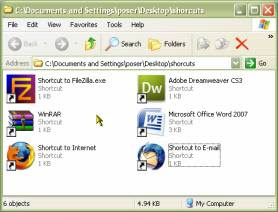
Here’s a really simple tip that’ll place all your shortcuts in one, easy-to-access location. Create a folder on your desktop, or any other place that you can get to in a snap, and simply place all the shortcuts to your programs, folders, and files that you want easy access to in it. By placing all your most used shortcuts in one location, you’ll become faster at everyday file launching tasks.

You too can become a more productive and efficient computer user by using the above tips to speed up your file and folder launch times.

Pc Doc Pro is the pc doctor for your home pc which provides you complete solution fo your favorites streamline your files and folder access. Pc Doc Pro always keep your pc clean for fastest speed of your pc.

Saturday, March 7, 2009

Pc Doc Pro: Home Network Troubleshooting

Home Network Troubleshooting Methods

How’s the state of your home network? Does your Wi-Fi connection mysteriously drop or crawl at a snail’s pace? Does your shared printer suddenly become an introvert, not reaching out to the rest of your network? When nasty network issues arise, it’s easy to break down and call your ISP’s tech support, usually getting a recording telling you to check out their website to fix your connection problems, the type of flawed logic that pains one’s head. If network maladies are disturbing your peace of mind, check out the following tips to get your home network up and running smoothly. If anything, add these tips to your information toolbox so that you’ll know what to do just in case you need to fix your network.

Feeble Wi-Fi Signal?

Mark and apply this tip if you want to give your Wi-Fi signal a little more muscle, boosting its signal. Always make sure that you situate your wireless router in a high position, off the floor, away from microwaves and other electrical interference causing machines; doing so will make it easier for wireless adapters to “see” and communicate with your Wi-Fi router. Outside interference with your wireless network may result in a degraded wireless signal or outright disconnection.

Network Down? Modem Reboot

This usually does the trick; if your DSL connection is in conniption fit mode and just won’t connect, try giving your modem a reboot by unplugging it and waiting a minute before plugging it back in and powering it up again. If this doesn’t work, try rebooting your PC and rebooting your modem. This common method fixes your downtime issues more often than not.

Can I Share my Printer over my Home Network?

Yes! The easiest way to do this is to purchase a printer that comes stock with a wireless or Ethernet port. Sharing a printer over your home network is a great way to grant print capabilities to all your computers without having to physically attach a printer to each one, which would be a waste of money and space!

If you don’t want to splash out, there’s an alternative to buying a network printer, and that’s attaching your printer to a computer on your network and having that box act as a printer server; the only drawback to this configuration is that the print server needs to be left on if any print requests from the network come through. Follow the steps below to configure your print server.

Make sure that your printer is installed properly on your print server and open up the Control Panel; next, open up Printers and Faxes, right click on your printer, and select Sharing, making sure that Share this printer is selected.

For all other PCs on the network that you want to see the printer, go into the Control Panel, Printers and Faxes, and select Add a printer, following the directions of the all-knowing Print Wizard.

After the above steps have been completed, test out your configuration by printing something out. I like this sharing method, but, again, the only drawback to sharing your printer in this fashion is that the server needs to be on all the time. If this causes a problem, you can always purchase a print server, a small box that connects with your printer and network to enable print sharing all around.

When your network is usually transferring data at a nice clip, it’s easy to get puzzled when your wireless signal inexplicably dies or diminishes to a whisper. Follow the above tips to get your network up and running again.


Pc Doc Pro is one of best registry cleaning tool which helps us to make our home network best. Pc Doc Pro provide us all types of Home Network Troubleshooting methods

Friday, March 6, 2009

Keeping Your Files Private with Pc Doc Pro


Keeping Your Files Private

As computers become more incorporated into our everyday lives—online shopping, bill payment, etc.—it’s easy for your hard drive to become filled with online shopping receipts , electronic statements, miscellaneous login/password information, and other private documentation that you’ll want to keep away from wandering eyes. What’s the best way to keep your personal information private on your computer? With a little common sense and armed with a little technical knowledge, you’ll be able to maintain your privacy while enjoying the benefits the digital revolution has to offer.

Create Your Own Account

Even if you don’t share your computer with other people, it’s always a good idea to create an account that you need to manually log into. Windows does a pretty good job at keeping users’ files private and out of reach from other users. This security technique isn’t rock solid, and certainly shouldn’t be relied upon as one’s only means of privacy and security, but it adds an extra layer of obstruction to further frustrate unauthorized, roving eyes.

Windows’ Built-In Encryption

Using Windows’ EFS—Encryption File System—technology will obfuscate your files, making them truly confidential and “for your eyes only”. EFS is available in most versions of Windows: Vista, XP, and 2000. Fire up an instance of Windows Explorer and navigate to a file or folder you’d like to encrypt for privacy purposes. In the popup menu, select Properties, General Tab, Advanced, and select “Encrypt content to secure data” to begin the encryption process. You’ll receive a confirmation dialog asking you if you want to encrypt the files and child subfolders inside the folder if you’re encrypting an entire directory with files residing inside of it.

Once the encryption processes finishes, your files will be encrypted. The beauty of using Windows’ built-in encryption is that you don’t need to input a password or jump through hoops every time you want to access your encrypted files; all you need do is login to your account, and you’ll be able to treat your encrypted files as if they weren’t even encrypted! Other users on the PC won’t be able to access your protected data, as the only way to do this is to have access to your private account, so, as common sense dictates, keep your login/password confidential and arbitrary enough so that they cannot be easily guessed for nefarious reasons.

An Alternative: TrueCrypt

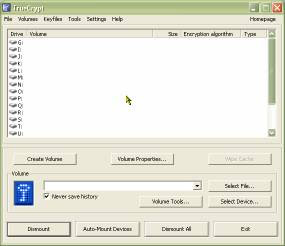
If you would rather use an encryption method that doesn’t depend on Microsoft’s OS, give TrueCrypt a try. TrueCrypt is free and is great at creating encrypted “containers” to store all your precious data in; these encrypted containers can then be mounted via the TrueCrypt service to gain access to the container’s contents on the grounds that a correct password is input when prompted.

TrueCrypt isn’t as convenient as Windows’ built-in encryption routine, as with the built-in method, all one needs to do is be logged into their account to access their protected data; with a TrueCrypt container, you must manually mount and enter in your password each time you want to access your encrypted data. The extra step involved isn’t a big deal, and the added benefit of not having to rely on EFS makes TrueCrypt even more appealing.

By keeping all your important data encrypted and away from prying eyes, you’ll create peace of mind and protect yourself from data thieves.

Pc Doc Pro provides you complete solution for keep your file protect and dined to miss use your file from other pepole. Know the best trick to keep your file private with Pc Doc Pro

Thursday, March 5, 2009

Pc Doc Pro Solution Electronic Waste Disposal


Responsible Electronic Waste Disposal

It appears that more and more electric gadgets are saturating the market, and as Moore’s Law dictates, the technology will only keep getting faster and cheaper, calling out for you to spend your hard earned disposable income on the latest must-have techie toy.

Playing and working in the digital revolution, it’s often cheaper and easier to simply purchase a new product rather than upgrading or fixing it; as such, one is often left with a stockpile of defunct television sets, slow PCs running the laughable Windows ME, early cell phones that are the size and weight of a brick, and mammoth CRT monitors that weigh in at about 60 pounds.

PICTURE STOCKPILE

Sure, you can stow away all this e-waste in your garage—out of sight, out of mind mentality—or can you determine whether your device is still functional and can be donated. Whatever you do, don’t just toss your e-waste out in the garbage can as if it were a carton of rotten eggs; do the earth a favor, and don’t give it indigestion by dumping your e-waste into it! So, what does one do with e-waste?

Consider Donating

This works especially well for old computers and television sets. If you decide on buying a brand new computer system, you’ll need to do something with your old one if you’re not planning on using it anymore. Factors for buying a new PC are typical: old PC is too slow, operating system is outdated, less of a hassle than manually upgrading etc.; the reasons goes on.

OLD PC

If your old PC is still working, think about donating it to a school, friend or family member. A lot of people simply purchase new PCs so that they can get the latest version of Windows, which is understandable, as a lot users don’t like to fuss around with carving out partitions, long installation procedures, and other arcane geeky tasks required for upgrading an OS.

OK, so you’ve decided to donate your PC, but the main reason for giving it away is because it’s too slow, perhaps because of a paucity of memory and an older version of Windows. If you’re willing to learn a little bit about the insides of your old computer, you can put a spring back into your old PC’s step by installing a less resource hungry OS, such as one of the many distributions of Linux.

The beauty of most Linux distributions is that they’re straight forward, can run on all sorts of older hardware, and can even run on systems with less than 64 megabytes of RAM! The recipient of your donated PC will greatly appreciate your taking the time to give their computer a little more kick.

E-waste Facilities

I’m lucky that I live right next to a Wal-Mart that does e-waste collections twice a year in their parking lot. They make it as convenient and easy as possible to get rid of your old computers, cell phones, monitors, TVs, DVD players, et al. The procedure is simple: the night before, I always load up my car with hardware that isn’t biodegradable. Upon driving to the e-waste section of the parking lot, a work crew will do all the heavy lifting—have you ever struggled under the weight of a 21 inch CRT monitor?—and I always leave the facility with a sense that I’m doing my part to help clean up the earth. Chances are that you live close to an e-waste handling facility; query Google for the closest one near you.

E-WASTE

E-waste shouldn’t be thrown away in the trash, only ending up being buried and poisoning our only home, the earth. Donate your old hardware or locate an e-waste disposal facility near you.

Pc Doc Pro is one of the best registry cleaning software which gives you complete solution for
Responsible Electronic Waste Disposal.

Wednesday, March 4, 2009

PCDOCPRO: Solve your Internet problems


Healing an Ailing Internet Connection

It’s happened to all of us at one time or another; you’re surfing the web, and you realize that your internet connection has just kicked the bucket. We’ve all cursed at our computer displays, shook the mouse in fury, and pummeled the browser’s refresh button with multiple clicks, all futile actions and wasted energy, if you ask me. Let’s go through some tips to resurrect a defunct net connection.


Windows comes equipped with a host of networking information and troubleshooting tools, most of which can be accessed from within a shell—a text-based command prompt. Hold down the Windows key and R key to bring up the Run dialog box; next, type in cmd inside the text box and hit enter to be presented with a command prompt; this is where you’ll be able to issue the networking commands to fix your connection.

Usually, when one calls tech support at their ISP for a down connection, the tech support will often coach the user in navigating a program called Ipconfig. Ipconfig—Internet Protocol Configuration—is a very useful network utility that comes stock on all versions of Windows. Ipconfig is most often the key to reestablishing a connection to the internet.

A Fresh IP Address

Refreshing your IP address may get your network back on track. Broadband internet is great; information instant gratification is becoming a reality, but it’s certainly not flawless in its current state. Most broadband ISPs assign a dynamic IP address to their users’ computers. The dynamic nature of your IP address means that it changes from time to time, and the changes usually occur without a problem and without your noticing it, but sometimes the process gets tangled up and your computer never gets a fresh IP address.

In the Control Panel, select Network Connections and right click on your connection icon, selecting repair in the menu; this will tell Windows to discard your current address and to request a new one. This process usually works 7 out of 10 times, but if not, read on, as manual intervention may be required on your part.


Using Ipconfig

Pull up a command prompt and run Ipconfig. Running Ipconfig without any parameters will display various bits of networking information, such as your IP address, subnet mask, gateway addresses and other networking miscellany. To actually make Ipconfig do something constructive you need to give it a parameter when you run it; at the prompt, type in ipconfig /release.

This will instruct Ipconfig to flush the current IP address for all networking adapters. Next, type in ipconfig /renew. As you might have guessed, the renew parameter requests a new IP address for your networking adapter.

The Ping Pong Game

The aptly named ping tool is an indispensable way to test the amount of time it takes for data packets to make a trip to and fro from a host computer. Ping is also useful in verifying that your computer’s network adapter is functioning correctly. Typing in ping 127.0.0.1 tells windows to ping your computer; if you see that the packets are returning, then you know your adapter is doing well.


Next, knowing that your network adapter isn’t at fault, ping an external computer in cyberspace, like yahoo.com or google.com. If your packets make it back home, your network connection is back up!

Try Tech Support

The last resort that usually solves all problems is a call to your ISP’s tech support office. But even though you’re calling for help, you should still know the various networking tools—Ipconfig, Network Connections, ping etc.—as the tech support operator will probably need you to run them from your side.

Pcdocpro is one of the best registry cleaning software which also provide us the solution for all the internet problems.

Tuesday, March 3, 2009

Recovering your file with PCDOCPRO

Recovering Dead Or Missing Files

It’s a popular misconception with novice Windows users that once one deletes a file from the recycle bin, it’s unrecoverable, gone forever; if you haven’t let a significant amount of time elapse since deleting the file from the recycle bin, you may still be in luck. So, what exactly happens when a file is deemed defunct and swept out of the bin? Windows won’t actually permanently overwrite your file until new data rides in and is written to disk; so, the file still resides on your hard drive, even when purged from the recycle bin, but it can’t been seen anymore. Bearing this in mind, there’s always a chance that Windows hasn’t overwritten your deleted data yet, so your file may still be recoverable if you’ve the right tools at your disposal.

Where’s my File?


Your document was there a second ago, now it’s not! Did you accidentally clean it out from the recycle bin, or perhaps you simply misplaced or renamed it on your hard drive? Your brain is frazzled, and it’s hard to think straight, but don’t panic. Before investing in a professional file recovery program, try several tips that may save you time and money.


Firstly, if you think you may have deleted it, don’t run any programs or services that write data to your hard drive. Remember when I said deleted files will eventually get overwritten given enough time? Well, this is why it’s wise not to provoke Windows into doing any data output to your hard disk while your file is still on a milk carton. Start with using the built-in Window search tool—Start menu, Search. Start out by searching for the entire file’s name or a part of the file’s name. If you locate your file using this method, be sure to make a backup to a thumb drive or email it to yourself for offsite storage.

No Dice: Another Method

So, you’ve scoured your hard drive with Windows Search and have come up empty. It may be time to bring in the big guns. If you query Google, you’ll find scads of file recovery utilities, alongside the supposedly more reputable pay-before-you-own programs. One example, FreeUndelete, may be just what you need to get your file back; it’s interface is clean, simple, easy to use, and it’s clean from the nasty, groping tendrils of spyware and adware!


Resurrection After Reformatting

Have you ever accidentally reformatted your hard drive? What a nightmare, I know, but how does one recover their data from such a catastrophe? This scenario requires a little more muscle than a simple data recovery utility provides. QueTek offers a solution called File Scavenger for $49 USD, which is a lot cheaper than many of the other recovery solutions on the market; File Scavenger also offers most of the features of its more expensive competition.

Failing Hard Drive Recovery

Is your hard drive exhibiting weird noises? Are you experiencing odd corruption errors? These may very well be signs of hard drive doom. If anything, take these signs to mean the imminent death of your hard drive, and start backing up, backing up, backing up right away!

Pcdocpro is one of the best registry cleaning software which also provide us knowledge about to recovering our missing files.

PCDOCPRO: Turbo Charging Your Box

Turbo Charging Your Box


Just like turbo charging a 4 cylinder engine in a coup, you, too, can push your computer’s CPU—central processing unit, the brains of your PC—to faster speeds; the more data your CPU can process in a given interval of time, the faster and smoother CPU intensive programs will run—think video games, video editing software and suchlike. The vendor supplied factory presets of your CPU and GPU—graphics processing unit—can usually be altered, overclocked to jack up your CPU’s performance, yet still run comfortably and in a stable state.

Bearing that in mind, realize then that you don’t need to break the bank, shelling out thousands for a new gaming box, as one can often achieve the same results of a newly assembled gaming PC simply by overclocking your existing CPU and graphics chip, and the price is certainly right: free! Before you decide on upgrading your existing processor or graphics chip, try bumping up the clock speed to see if you can squeeze a little more juice out of your current hardware; you may be very happy with the results and end up saving a pretty penny.

The Art and Science of Overclocking

If you’re nervous about voiding your warranty, overclocking may result in more anxiety, as most manufacturers toss the warranty out the window once you start tweaking around with their hardware, pushing it past its factory presets; but if you exercise a little prudence, you’ll be able to overclock your PC without hitting any snags, and you’ll gain a more intimate rapport with your PC because of the hands-on time you’ll invest in overclocking it.

It goes without saying that the faster something works, the more heat it’ll probably produce as a result of the increased speed. This is certainly true about your CPU: the faster you push it, the more heat it’ll need to let off to cool itself down. You definitely don’t want your processor to go up in a caustic burst of binary; keeping your CPU nice and cool is a simple procedure that’ll greatly extend the lifespan of your CPU. Maintaining a cool processor is paramount and must be considered should you decide to overclock your PC.

Meet the Multiplier

There are basically two methods for overclocking your box: stepping-up your PC’s FSB—front side bus—frequency, or increasing your CPU’s multiplier to achieve the same results. Altering your CPU’s multiplier can be done without even opening up your PC’s case; however, most modern CPUs have their multipliers locked. If your CPU’s multiplier can be changed, you’ll need to go into the BIOS to find and crank up this setting. This is how your CPU’s multiplier works: say your FSB is clocked at 200 MHz, the multiplier at 10; your CPU is now clocked at 2.0 GHz, as 200 x 10 is 2000; upping the multiplier to 12 will then set your CPU at 2.4 GHz. This process usually takes a little trial and error to achieve desired satisfaction and stability.

FSB: Push the Bus

Pushing the FSB past its factory preset is the preferred method of overclocking considering most modern processors have their multipliers locked, but this method has an advantage too: not only does it boost the CPU’s clock speed; it also increases the rate in which data migrates between main memory and CPU. Always exercise caution when calibrating your FSB’s clock speed: crashes usually ensue when first tweaking out your FSB, so you may need to experiment with memory and voltage settings in your PC’s BIOS to stabilize your system.

Overclocking your PC is a great way to squeeze every bit of performance out of your CPU; after all, you paid for it; why not get what you paid for?

Give Turbo Charging to your pc box with pcdocpro.

Pcdocpro: Computer On A Keychain


Computer On A Keychain


Portable storage technology has made leaps and bounds since the days of tapes and floppy disks. It was only a matter of time before the marriage of the USB port to flash memory hardware was realized. Not only are USB thumb drives tiny, but they sport gigabytes of storage and are more robust than the floppies of yesteryear; as if this weren’t enough, it is now possible to pack an entire computer system onto a USB thumb drive, allowing you to cut the shackles that bind you to your laptop.

Stroll into your favorite internet cafĂ©, plug in your thumb drive, and you’ve got your own personal computer, complete with all your files, settings, and personal launch menu. Web 2.0 applications have made it easier to do a great deal of your computing online—think Google Docs and Calendar—but a thumb drive allows for the storage of any application that you can install on your home computer.

The Perfect Thumb Drive

Before anything else, you’ll need to select a good reliable thumb drive. It’ll behoove you to choose a thumb drive with a read rate of 15 megabits per second or faster; the faster your thumb drive is, the more fluid and quickly the applications that you store on your flash drive will run. Before your purchase, make sure that you’re choosing a USB 2.0 flash drive, as opposed to its much slower USB 1.x predecessor.

Software for the Hardware

Now that you’ve got the right thumb drive, it’s time to select the portable software you’d like to populate it with. The term “portable software” refers to programs that were written to run from a single folder without writing to the registry and saving files to the host computer. Basically, a portable program is completely self-contained and has everything it will ever need right inside its folder, the perfect type of program to run from a thumb drive.


Because of the nature of office suite software, unfortunately, Microsoft Word doesn’t fit into the category of “portable software”, but that doesn’t mean you’re completely out of luck if you wish to run word processors and spreadsheet programs from your thumb drive; there are a number of office suite packages that were designed to run in a portable environment.


A nice all-in-one package of various programs is Portable Apps. This collection includes a virus scanner, Firefox, Thunderbird, IM client, and much more; basically, this package contains much of what you need to get your daily computing tasks done when you’re on the go.


Software Launch Pad


OK, so you’ve got your super fast thumb drive packed with your favorite portable programs; what’s next, you ask? Well, the icing on the cake for your personalized pocket computer is an application launcher. Portable Apps comes with one right out of the box. Most launchers place an icon in the host computer’s taskbar tray; clicking this icon will pop up a menu akin to Windows’ start menu that makes it more convenient to run the programs on your thumb drive. There are a number of portable launchers to choose from, so you may want to experiment to see which one meets your needs the best.


With just a ubiquitous thumb drive and the right type of software, you’ll be able to forgo lugging around your laptop, carrying around a tiny personalized computer in your pocket or keychain instead!

Monday, March 2, 2009

Pcdocpro: Recovering from Hard Drive Disasters

Recovering From Hard Drive Disasters

Your failing hard drive grinding away at itself is certainly not a pleasant thought, your data forever discarded into the dark binary abyss. But if you’re prepared and take the necessary precautions, a hard drive malfunction resulting in data lose can just be a minor inconvenience in lieu of a major catastrophe.

Sure, you can manually backup all your documents, emails, and photos to a thumb drive on a regular basis, but there’s an even better way of backing up your data. Backing up your precious files is all well and good, but what about all your Windows settings, bookmarks, applications, patches , etc? If all these settings, configurations, and installed programs aren’t saved, you’ll need to go through the drudgery of doing it yourself once your PC is back up and running, all over again! Don’t despair, as there’s an easier way to bounce back.

The solution is to use an application that can create an image of your hard drive; having a drive image tucked away in a safe place is a great idea, as restoring it when a PC calamity ensues can take away much of the frustration and headaches involved with a manual install.

Acronis True Image

Acronis True Image is just such a program. With the latest version of True Image, you’ll be able to backup and restore a drive image with the added benefit of preserving all your files and folders, possibly saving you many hours in the process. Most drive image programs make the user map the drive before it’ll allow them to explore the image’s contents, but True Image allows you to search the contents of an image without having to map it first; very cool!

True Image also makes it hassle free to express which files you do and don’t want to back up; for example, you can tell True Image to backup everything except for the files inside a temporary folder. If you maintain a network, try True Image Echo Workstation to centralize your backup procedures, effectively allowing you to backup your entire network from one computer. True Image gives you a lot of control over your backup needs and is extremely easy to use.

Freezing a Failing Hard Drive

Is your hard drive making a weird clicking or metallic noise? Do you find that your files are mysteriously vanishing? These could be warning signs, trumpeting the immanent doom of your hard drive. Below is a list of some signs of early hard drive failure:

1. Computer freezes sporadically.

2. Vanishing files.

3. Boot-time lockups.

4. Sluggish file access.

If you experience any of these warning signals, backup all your data immediately, as there’s no telling when your hard drive will breathe its last breath. But what if your hard drive is already dead? How do you recover and backup your data? Well, popping your defunct hard drive in the freezer for a few hours could buy you an extra 20 minutes of functionality for your dead hard drive, which just may be enough time to salvage all your precious files.

PCDOCPRO provide us complete solution for Recovering from Hard Drive Disasters


Links :

SEO
SEO Positive Ltd are an ethical SEO company offering SEO Services to customers all over the UK. SEO Positive Ltd, The SEO Experts.

Sunday, March 1, 2009

Pcdocpro tips to File Control

File Control

>Everyday computer usage—web surfing, program installing, spreadsheet crunching—can yield some surprising results for your hard drive: temporary files asunder, hogging precious disk space, and the internet cache about to pop from digital indigestion. Luckily, there’s a free tool called CCleaner; consult Google for the download. CCleaner’s forte is the removal of binary junk from your hard drive, sweeping out the temp files to make room for more important data.

Like all well thought-out programs, CCleaner can be easily configured to do as you wish. Deleting designated files and folders at certain times is a fantastic method to ensure you’re optimally using your hard disk space, and CCleaner is no slouch in this department. Suppose you’ve a junk directory that you use for your daily workspace; at the end of the day, the temp files residing in said folder are no longer needed, so why leave them hanging around? Configuring CCleaner to clean out this folder every time you run it is simple.

Moving and Copying Files with Total Copy

Windows does a fine job with its built-in file moving and copying routines, and shuttling files to and fro within an instance of Windows Explorer is a skill acquired at birth. I only wish Explorer afforded the user a little more control over the file transfer process; it’s frustrating when you want to copy a large file, and you’ve no way to pause the transfer, resuming it at your whim; the default copying/moving process in Windows cannot be paused, so you have to wait it out or cancel it completely. So, as is usually the solution, an external program is needed to accomplish this task.

Total Copy trumps Windows’ default copy/move routines by virtue of allowing you to pause the file transfer in midstream, resuming it later, and, if that weren’t enough, it also lets you copy/move multiple files simultaneously and often faster than Windows can.

Alternative Copiers: TeraCopy and Supercopier

Total Copy is a tad old, and its code hasn’t been maintained for quite a while, so you may want something more in vogue and stable. TeraCopy performs the usual tasks: pausing and resuming copying and moving jobs. But it also sports the ability to check for data errors after a copy/move, and if it detects any, it’ll retransfer to make sure your files arrive in their new location in pristine condition. Ter

aCopy, like Total Copy, possesses the uncanny talent of being able to copy and move files faster than Windows, a real boon to busy users that don’t like to wait. This program comes in two versions: Home and Pro; the Home version is free, but the Pro version, at a $20 USD price tag, comes equipped with more options and settings that one can tweak out for more control over the copy queue list.

Supercopier


Supercopier is also a nice file utility, and my favorite, as it gives me the ability to drag and drop my files right onto its window, and you can even save the file transfer list so that you can replay it, effectively copying the same files over again. Another convenient feature is the luxury of saving a default folder location to use every time you copy and move files—a feature I love, as I’m in the habit of limiting my mouse clicks when I can.


Pcdocpro is one of the best registry cleaning software which also help us to make our pc performance best. Pcdocpro provide us complete details for our pc protection.

Thursday, February 19, 2009

PCDOCPRO Avoid Expensive Maintenance

4 Simple Ways to Avoid Costly PC Problems


The sooner you detect problems developing on your PC, the greater are your chances of fixing them for you incur serious damage. One of your major responsibilities as a PC user is to get in the habit of regularly scanning your PC to catch problems early, protecting your computer's health so that it continues to run smoothly. If you wait too long to fix a problem, or simply adore it entirely, you are asking for an expensive trip to the repair shop.

There are four basic steps you can take to keep your PC in top condition.

  • Begin by Running Regular Registry Scans

As you add or remove programs and hardware devices from your PC, change your user preferences, or simply perform your daily tasks, you are changing the data which resides within your Windows registry. When you do that, some of the old data is left behind even though it's no longer needed for your Windows operating system to function.

Too much left over data will clog up your registry, increasing the amount of time your operating system takes to find the data it actually needs. Symptoms of an overloaded registry are longer loading times, error messages, and system freezes or even crashes. You can avoid these problems by scanning your registry under regular basis to locate and remove erroneous or redundant entries. One excellent registry cleaning software program is PC Doctor Pro.

  • Keep Your Disk Clean

Every Windows operating system with its own tool which can locate and remove unnecessary files from a hard drive. Like your Windows registry, your hard drive can be cluttered with junk files which slow your system's performance. How can you use your PC’s Disk Cleanup tool?

  • For emptying the recycle bin
  • For uninstalling unused applications are programs
  • for deleting temporary files
  • for deleting downloaded programs
  • for removing outdated Windows components
  • Spyware and Adware Removal

Any time you surf the Internet or download programs and files, you risk infecting your PCs hard drive with spyware or adware. Having these malicious files on your computer cannot only be a security threat; it can also severely impede your PC's performance. Luckily for you, there are several excellent scanning tools which can locate and remove this kind of malware before it does any serious damage.

  • Defragment Your Hard Drive

Your computer performs at its best when the data on its hard drive is stored in a small area. The more use your computer gets, however, the more likely it is that your hard drive data will be randomly spread over its entire surface, depending on the amount of free space you have.

Widely scattered hard drive data results in slower PC performance, as your operating system spends more time looking for the files it needs. By defragmenting your hard drive, you can collect the data into well-organized blocks of information which take your operating system much less time scan. Your PC has its own defragmentation tool, which you simply need to access.

Click on your Start Menu, and select All Programs. Click Accessories, System Tools, and Disk Defragmenter. Choose the drive which needs be fragmenting, and close down any programs you're running before you begin.

Make sure to set aside a block of time when you won't be needing your PC before you begin defragmenting. Defragging can be a lengthy process, especially if you haven't done it for a while.

Performing these four basic maintenance tasks at regular intervals is your best way of ensuring that your PC continues to meet your expectations.


If you want to keep your pc well but afraid about too much expensive not no need to fear because pcdocpro is here. Pc docpro is one of the best registry cleaning software which provide you complete solution for your pc and gives the best way for your pc maintenance.